
Hey! I’m writing something again. It’s been a while, I know. More on that later, maybe. For now, let’s get into some good old fashion Entra solutions you can use.
Conditional Access is awesome. Like it’s a good system that allows you to control the authentication experience for you Entra accounts. The problem that the smart consultant guy who helps you setup it up never sticks around long enough to get you to the point where you have a few hundreds of accounts that end up being exceptions to your Conditional Access policies.
In this blog post, I am going to lay out for you how I deal with exceptions to Conditional Access policies in Entra.
The problem
We all agree that Conditional Access is great, and everyone should be using it a lot. The problem that IT administrators tend to run into in the real world is that most CA policies that you implement are going to end up needing at least some exceptions.
Let’s say you turn on a CA policy to block legacy authentication. Inevitably someone is going to pitch a fit because you broke the script they use to report on some job they have running on some host somewhere. The specific why doesn’t really matter when your boss sees the ticket and tells you to make that person’s thing work the way it did last week, then we can figure out a different reporting mechanism for them to use.
For our purposes here today, the “why” doesn’t matter. You need to set up a system for exceptions to your new Conditional Access policies. You need that system to be something the help desk can manage. When an executive calls into the help desk and say her flight has a layover in Burma (the country is called Myanmar in your Blocked Geo CA policy, but the help desk eventually figures out the problem) and she needs to access her email. This executive is getting that CA screen that says she is blocked, and she wants it fixed right now. You need a way for the help desk to add an exception now and figure out the details later.
“CAP-“groups
We’re not going to give the help desk “Conditional Access Administrator” roles. That’s crazy. We’re not going to let the help desk go in and modify our beautiful new CA policies that we have worked so hard on.
What we are going to do is setup “CAP-“ groups. C.A.P. standing for Conditional Access Policy, right? For the policies that we need to add accounts to, we do CAP-[whatever the name of the policy is] groups. For policies that we need to exclude accounts from, we create CAP-Exclude-[whatever the name of the policy is] groups.
We might have a CA policy called
[Grant] Complaint Windows client access
Accounts which meet the authentication conditions listed in that policy are granted access. Accounts that don’t meet the conditions of that policy are either denied access, or the policy is ignored and doesn’t apply to those accounts.
Some accounts are going to need to authenticate even though they are not authenticating on a complaint Windows device. To deal with that circumstance, we are going to create a group called
CAP-Exclude-ComplaintWindows
Now, when that executive calls into the help desk and says they don’t have time to apply the latest patches to get their device compliant, they need to send the TPS reports NOW, your help desk can add them to the exclusion group and they can get in. You’ll deal with the patching issue in the morning.
Then in the morning you’re busy. Stuff happens. Weeks go by, you look at your “CAP-Exclude” group and you see dozens of accounts in there. No one knows how or why those accounts are in that group but scanning over the names you understand that just removing those accounts is going to be a resume updating event for you. Ugh.
Controlling how exceptions are added
We all know those exceptions are going to happen, but we need to find a way to control the chaos at least a little bit. The help desk must remain empowered to add exceptions to your CA policies, but you need to at least track when those exceptions are being added and why.
My solution? Admin Units!

Setting up an Admin Unit for Cap-Exclude groups
Go into Roles & admins > Admin units > +Add to get the wizard started.
Give your new Admin Unit a name and add a description. No, I mean it. Go back and add a description. I saw you skip that part, and it’s important.
Set your new Admin Unit to “restricted management.”
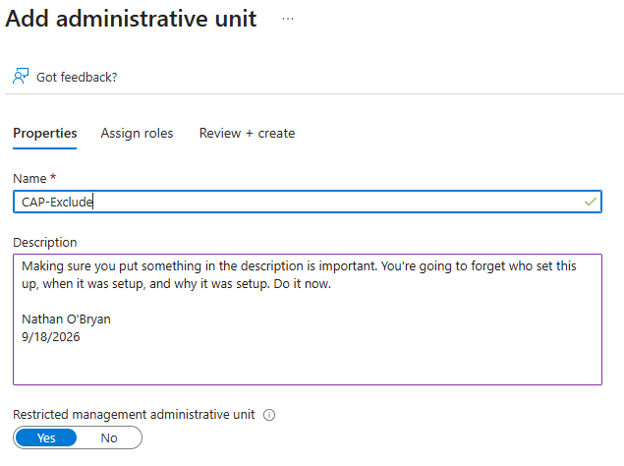
I prefer to just do that first screen of the wizard the first time through, then go back and correct the settings later. Just hit the blue “Review + create” at the bottom of the screen now.
Now, go back into that Admin Unit, and navigate to the Groups page. Here you will add all your “CAP-Exclude” groups.
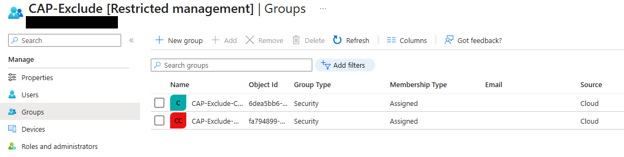
Then go into Roles and administrators and scope the Groups administrator roles to this AU.
I’m kind of skipping over the Privileged Identity Management part of this solution here. I’m coming up on a thousand words, and I have stuff to get done. Deal with it. I’ll cover more PIM setup and solutions in future posts.
For our purpose here today, the important part is that you’re going to require ticket information on role activation for this role.
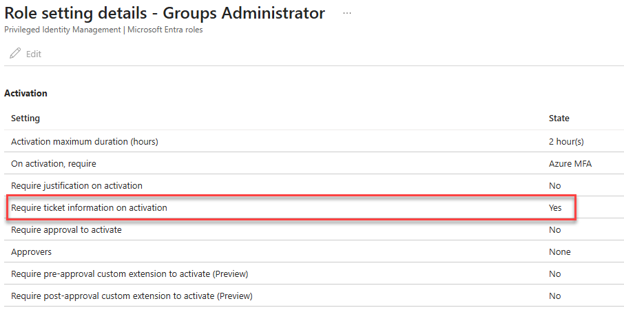
After that is setup, and that AU scoped role is assigned to your help desk “JITA” group, your help desk will be able to active that role and add accounts to the exception group, but they will need to put ticket information in the activation. This will give you the opportunity to go back later and clean up. Sometimes that is what we must do.
Wrapping it up
I think this is a decent compromise. This solution gives your help desk a way to quickly get that angry exec logged in without anyone having to immediately fix the compliance problem, but it also gives you a paper trail you can go back to.
Seems like a decent option to me, but what do you think?
-Nathan
